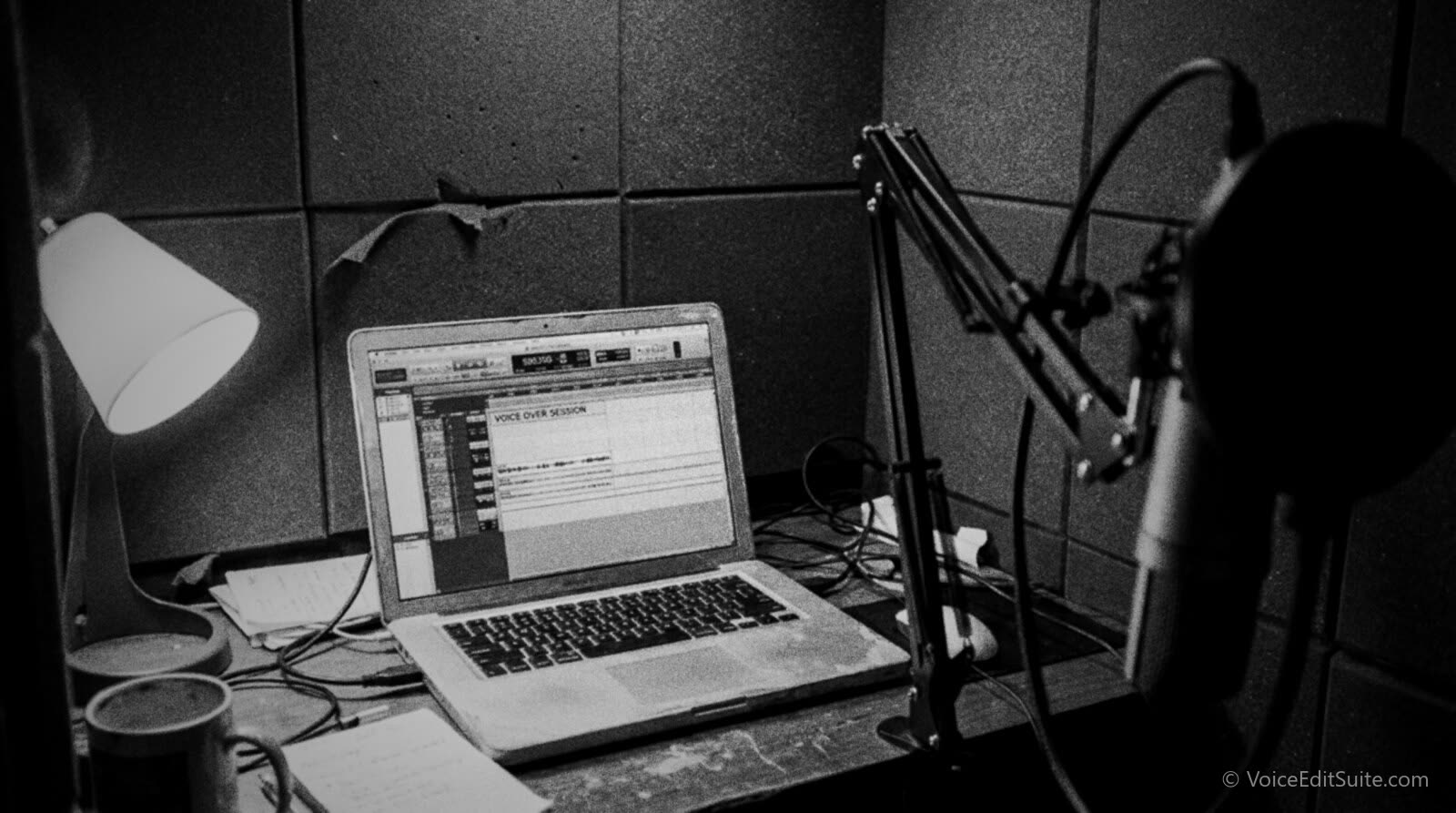
The short answer: for voice-over recording and podcast or audiobook editing, the computer itself matters far less than most buying guides make it sound. A machine built in the last four or five years with a modern multi-core processor, at least 16GB of RAM, and a solid-state drive will run every major voice-over and podcast editing tool at its recommended settings, Adobe Audition, Avid Pro Tools, Hindenburg PRO, Reaper, Audacity, and TwistedWave included. The dropouts, crackling, and stalled exports people usually blame on a weak computer are more often caused by audio interface buffer settings and drivers than by raw processing power, and money spent chasing a faster chip is almost always better spent on acoustic treatment and a clean mic chain first.
None of that means specifications are irrelevant. A machine that just barely clears a program's published minimum will struggle the moment a session grows past a few tracks, a handful of plugins, or an hours-long audiobook file with dozens of chapters open at once. What follows is what the DAW makers themselves currently publish as minimum and recommended specs, why storage type affects a multitrack session more than people expect, how buffer size and driver choice tie latency to CPU load, the real tradeoffs between Mac and Windows and between a laptop and a desktop, and a realistic, qualitative look at budget tiers that keeps the computer in proportion to everything else in the signal chain.
What Your Computer Actually Has to Do
Recording and editing spoken-word audio is a comparatively light computing task next to video editing or modern gaming. A mono or stereo voice track at 48kHz and 24-bit depth runs to well under 10 megabytes per minute of raw audio, and a typical voice-over or podcast session asks a computer to do four things at once: capture that audio in real time without dropping samples, run the DAW's interface and a modest plugin chain, let you scrub and edit responsively, and encode the final file on export.
- Real-time capture. The audio has to be written to disk, or buffered then written, continuously while you record, with zero tolerance for a missed sample.
- The DAW and its plugins. Noise reduction, EQ, de-essing, and loudness processing run live or near-live as you work, and each added plugin adds load.
- Responsive editing. Scrubbing, zooming, and applying edits across a multi-hour file should feel instant, not laggy, especially on long-form audiobook sessions.
- Export and rendering. Bouncing a finished file, or batch-processing a whole audiobook's chapters, is the one moment CPU speed visibly saves real time.
Where a computer actually starts to struggle is not a single voice-over read. It's a multitrack podcast session recording several guests locally at once, sometimes called double-ending, heavy spectral repair or restoration work, or an audiobook project with dozens of hour-long chapter files open simultaneously. Those are the scenarios worth building real headroom for, not the baseline task of recording one voice.
CPU and RAM: What the DAW Vendors Actually Publish
The numbers behind that chart come from each company's own current documentation, checked in November 2026, and they tell a more specific story than just buy something fast.
- Adobe Audition (version 26.x). Adobe's own system requirements page lists 8GB of RAM as the baseline on both Windows and macOS, rising to 16GB for HD media and 32GB or more for 4K and higher. The CPU minimum is an Intel 6th generation or AMD Ryzen 1000 series processor with AVX2 support, with an Intel 11th generation or Ryzen 3000 series or newer recommended. On Mac, Apple silicon M1 Pro, M1 Max, or M1 Ultra or newer is the recommended chip, with 16GB of unified memory.
- Avid Pro Tools. Avid's Pro Tools System Requirements and Compatibility knowledge-base article, last updated November 3, 2026 for the 2026.11 release, documents a 16GB RAM minimum on both Windows and Mac, the highest published floor of any tool here, with 32GB commonly cited as the comfortable working amount. Current releases require Windows 11 and macOS Tahoe 26.6.x, Sequoia 15.7.x, or Sonoma 14.8.x, and Apple's new M5-series Macs are listed as unsupported with known issues while Avid's qualification is in progress, a reminder to check compatibility before buying the newest hardware for Pro Tools specifically.
- Hindenburg PRO. Hindenburg's own specs page for its radio and podcast edition lists an 8GB RAM minimum on Windows 11 or later with a 10th generation Intel or AMD Ryzen 1000 series CPU or newer, and on macOS Ventura (13) or later running on Apple silicon M1 or newer. Hindenburg does not officially support Linux.
- Reaper (Cockos). Reaper doesn't publish a hard RAM or CPU floor the way the others do. Its installer has stayed remarkably small, historically cited around 20 megabytes, and the company has built its reputation on running on hardware too modest for most competing DAWs. Its official download page describes broad operating-system support instead of a numeric spec: Windows from XP through 11, and a macOS build optimized for macOS 10.15 and later, with older Intel-only builds reaching back to macOS 10.5.
- Audacity. The free, open-source editor's official download pages state which systems each release is tested on, currently Windows 10 and 11 and macOS 14 and 15, with wider informal support reported back to Windows Vista and macOS 10.11, but the project's own site doesn't publish a numeric RAM or CPU minimum. That's consistent with Audacity's long-standing reputation for running usably on modest, older machines for straightforward editing, though multitrack work with many layered clips benefits from more headroom the same as any DAW.
- TwistedWave. TwistedWave is built and marketed primarily as a Mac application, running natively on Apple silicon, alongside a browser-based online editor and iPhone and iPad apps. It has no separate native Windows desktop installer; voice actors and podcasters on Windows most often reach TwistedWave through that online, in-browser version instead.
Two patterns stand out. Every vendor that publishes a specific number treats 16GB as the realistic working floor, even though 8GB still appears as the bare installable minimum for Audition and Hindenburg. And the two tools with no published numeric floor, Reaper and Audacity, are also the two built specifically to run on modest or older hardware, a deliberate design choice rather than an oversight. Which of these six actually fits your editing workflow is a separate question from what it needs under the hood, one covered in more depth in choosing a DAW for voice-over editing.
Storage: Why SSD vs. HDD Matters for Multitrack Sessions
A single mono voice track asks very little of a hard drive, which is why older advice that any drive will do for voice-over still shows up in forum threads. That advice stops holding once a session involves writing several simultaneous audio streams to disk at once, the case in a multi-guest podcast session recorded locally, or reading from dozens of open chapter files in a long audiobook project. A traditional spinning hard drive has to physically move a read-write head to the next location on the platter for every new request, and that mechanical seek time is where a session carrying several tracks at once can briefly fall behind and produce an audible stutter or dropout. A solid-state drive has no moving parts and effectively no seek-time penalty, which removes that specific failure point.
Reports on this run more forum-level than peer-reviewed, and some advice in circulation is dated. Guidance that recommended hard drives over SSDs to protect against write wear is now outdated for current NAND endurance; modern SSDs handle sustained audio writing without the lifespan concerns that circulated years ago. Separately, SSD housekeeping tasks like garbage collection can occasionally cause a brief latency spike of their own, which is one reason an intermittent, hard-to-reproduce dropout isn't always a storage-speed problem. The practical takeaway across these sources is consistent even without a controlled benchmark: a modern HDD can usually handle a single voice track without issue, but an SSD, ideally NVMe, is the safer and now cheaper choice once a session carries more than one or two simultaneous tracks or a deep library of open files.
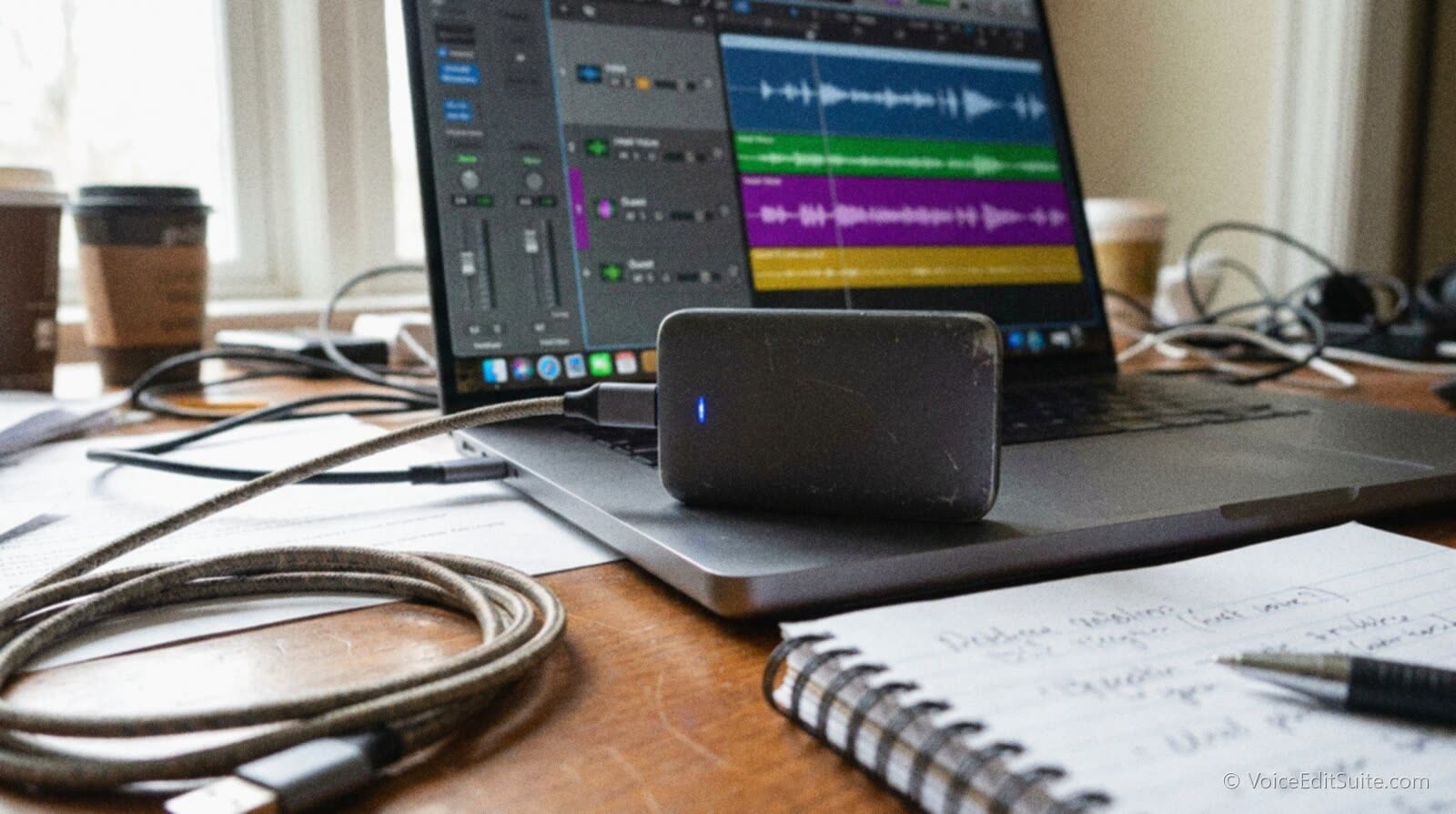
The same logic extends to where you record to. Recording directly to an external drive connected over a slow, flaky, or overloaded USB hub reintroduces a version of the same problem an HDD has: a connection that can't reliably keep up with the write demand, regardless of how fast the drive inside the enclosure actually is.
Buffer Size, Interface Drivers, and the CPU Load Connection
Buffer size is the setting most responsible for the tradeoff between latency and CPU strain, and it's worth understanding before blaming a computer for dropouts that are really a settings problem. A smaller buffer, 32 or 64 samples, gives the processor a very short window to finish each audio task, which keeps monitoring latency low but demands more of the CPU per unit of time. A larger buffer, 512 or 1024 samples, eases that demand and reduces the chance of a glitch, at the cost of a longer, more noticeable delay between speaking into the mic and hearing it back. The trade publication Sound On Sound frames the choice as a straightforward balance between low latency and easing the strain on your computer's processor, not a setting with one universally correct answer.
The common practical approach: run a low buffer, 32 to 64 samples, while actually tracking and monitoring live input, then raise it to 512 or higher while editing or mixing with a full plugin chain loaded, since latency matters far less once nothing has to be monitored live. A faster CPU mainly buys headroom to run a smaller buffer without glitching, rather than lowering the latency number directly, a distinction worth knowing before assuming a new computer alone will fix a dropout problem. The deeper, step-by-step troubleshooting for buffer-related dropouts, including when the culprit is actually a driver rather than the buffer size itself, is covered in fixing audio interface latency and dropouts.
Driver quality compounds all of this. An outdated or poorly optimized interface driver can quietly inflate CPU load in a way that looks exactly like a slow computer, when the actual fix is a driver update or a different interface entirely. Choosing the right audio interface up front avoids a lot of this, since a well-supported interface with efficient drivers asks less of the same CPU than a cheap one with clunky, rarely updated software.
Laptop vs. Desktop, and Mac vs. Windows: The Real Tradeoffs
Mac and Windows differ mainly in driver ecosystem, not in raw ability to run any of the six tools above. macOS uses Core Audio, built into the operating system, so most class-compliant interfaces work without installing a separate driver at all. Windows generally needs an ASIO driver from the interface manufacturer to reach low, consistent latency, though WASAPI, a newer native Windows audio path, has narrowed that gap considerably. The common rule of thumb among audio engineers, including explainers like Lewitt Audio's on what ASIO actually does, is that Mac users get reliably low latency through Core Audio with minimal setup, while Windows users need to actively choose an interface with solid ASIO driver support rather than assuming any interface will perform the same.
Resale value is the other real difference, and it's less about brand loyalty than it looks. Resale marketplaces that track actual sold listings, such as Swappa, consistently report Apple laptops retaining a larger share of their original price after a few years than most comparable Windows laptops, though the exact percentage varies by specific model, condition, and how long it's been owned. A Forrester Total Economic Impact study commissioned by Apple, cited by analysts including ProjectWizards, found an average saving of 843 US dollars per Mac over three years in enterprise deployments, a total-cost-of-ownership figure rather than a resale-value one, and one worth reading with the knowledge that Apple paid for it. Treat both as directional evidence that Macs tend to depreciate more slowly, not as a precise number to expect on your own machine.
Laptop versus desktop comes down to where you actually work. A desktop generally delivers more RAM and storage per dollar, better sustained cooling for long exports, and an easier upgrade path, swapping in more storage or RAM later rather than being stuck with what you bought. A laptop gives up some of that headroom for the ability to record and edit outside a fixed room. Someone who records and edits exclusively in a treated home studio gains little from a laptop's portability and gives up upgradability for it; someone who also needs to record on location or travel with clients gets real value from it, and the two needs don't have to compete, since a laptop built to handle a mobile voice-over rig for travel recording can still sit on a desk at home the rest of the time.
Realistic Budget Tiers: Where the Money Should Actually Go
Specific prices shift too often to print reliably in a guide meant to stay useful for more than a few months, so what follows is framed qualitatively, by what the computer needs to do rather than a dollar figure that will be wrong by the time you read this.
- Entry. Clears the published minimum for whichever DAW you've chosen, generally 16GB of RAM in practice even where a vendor's bare minimum says 8GB, a modern multi-core processor, and an SSD boot drive. A current mainstream laptop or a budget desktop in this range is genuinely fine for solo voice-over tracking and light podcast editing with a few plugins.
- Solid working. Comfortable headroom above the minimum, commonly 32GB of RAM, a faster multi-core CPU, and a roomy NVMe SSD. This tier handles a multi-guest podcast session recorded locally and an hour-long audiobook chapter with restoration plugins loaded without drama, and it's where most working full-time voice actors and producers settle once their workload is steady.
- High-end. Built for heavy multitrack work, video podcast production, or large plugin chains that genuinely tax a CPU. This tier buys faster renders and more multitasking headroom. It does not, by itself, make a voice sound better, cleaner, or more professional.
That last point is the one worth repeating: a few hundred dollars moved from the computer to acoustic treatment, or to the microphone and interface in front of it, changes how a recording actually sounds. The same money spent on a faster chip changes how long an export takes. Both matter, but only one of them is audible to a listener. What a home voice-over studio actually costs breaks that spending down across a full setup, room, mic chain, computer, and everything between.
↗ Try the tool
Home Studio Analysis
Not sure whether your real bottleneck is the computer or everything around it? That's worth answering before you spend on either. Home Studio Analysis takes a free look at your room and gear together and flags what's actually limiting your sound, so an upgrade budget goes toward the thing that will change how you're heard, not just how fast a file exports.
Open Home Studio Analysis →Frequently Asked Questions
Should I buy to a DAW's minimum spec, or its recommended spec?
Recommended, when the budget allows it. A minimum spec is usually the floor the software will technically launch and run on, not a floor for comfortable daily work; Adobe's own Audition page, for instance, lists a higher RAM figure for HD media than its bare installable minimum. Buying to the minimum works for occasional, light use and tends to show its limits exactly when a session gets more demanding, more tracks, more plugins, a longer file, not when you first open the program.
Does a gaming PC make sense for voice-over and podcast editing?
The CPU, RAM, and storage in most current gaming PCs comfortably clear every spec listed above, so yes, it works. The one component gaming PCs over-invest in for this purpose is the graphics card; audio-only editing barely touches a GPU, so that part of the budget is wasted unless you're also editing video for a podcast, where a capable GPU does start to matter for render times.
How much RAM do I actually need for a multitrack podcast session with several local guests?
16GB is workable for two or three guests with a light plugin chain. 32GB gives real comfort once you add more guests, heavier restoration plugins, or a habit of leaving other programs, a browser with many tabs included, open during the session. RAM needs scale with simultaneous tracks and plugin load more than with any single factor alone, which is why the vendors above treat 16GB as a floor rather than a target.
Is a refurbished or older machine a reasonable way to save money?
Often yes, as long as it clears the current numbers above, 16GB of RAM in practice and an SSD, and as long as its operating system still qualifies for the DAW you plan to run. That second condition is easy to miss: Pro Tools' current release requires specific recent macOS versions and Windows 11, and Hindenburg PRO requires Windows 11 as well, so a well-specced older machine stuck on an outdated OS can still be a bad buy if upgrading that OS isn't realistic on the hardware.
Does the computer matter more for audiobook editing than for a typical podcast episode?
A little, yes. Audiobook work often means dozens of hour-long chapter files handled across a project, sometimes with restoration or de-essing plugins run across the whole book, a more sustained demand on RAM and storage than a single 45-minute interview episode. The CPU demand itself is still modest compared to anything video-related; it's the sheer volume of long files and the plugin chain running across all of them that makes extra RAM and a roomy SSD pay off more clearly on an audiobook project than on a short-form episode.
Sources and Further Reading
- Adobe, Audition system requirements: Adobe's own current minimum and recommended RAM and CPU figures for Audition on Windows and macOS.
- Avid, Pro Tools System Requirements and Compatibility: Avid's own knowledge-base article, last updated November 2026, covering supported operating systems and RAM for current Pro Tools releases.
- Hindenburg, Radio and Podcast (PRO) specs: Hindenburg's own published minimum system requirements for its PRO radio and podcast software.
- Cockos, Download and Evaluate REAPER for Free: REAPER's official download page, describing broad operating-system support rather than a numeric RAM or CPU minimum.
- Audacity, Download Audacity for Windows: the project's official download page listing which Windows versions the current release is tested on.
- Sound On Sound, Q. What buffer size should I use?: the trade publication's explanation of the latency-versus-CPU-load tradeoff in buffer size settings.
- PCAudioLabs, Why Does Buffer Size Matter in Audio Recording?: a build-focused explainer on how buffer size interacts with processor headroom.
- Lewitt Audio, What Is ASIO?: a microphone manufacturer's explainer on ASIO drivers and why Windows and Mac differ in default audio driver behavior.
- Swappa, Which Device Categories Hold Value: resale-marketplace data on how laptops, including Apple models, hold value compared with other device categories.
- ProjectWizards, What Does a Mac Really Cost? The TCO Comparison With Windows: cites the Forrester Total Economic Impact study, commissioned by Apple, on three-year Mac total cost of ownership.