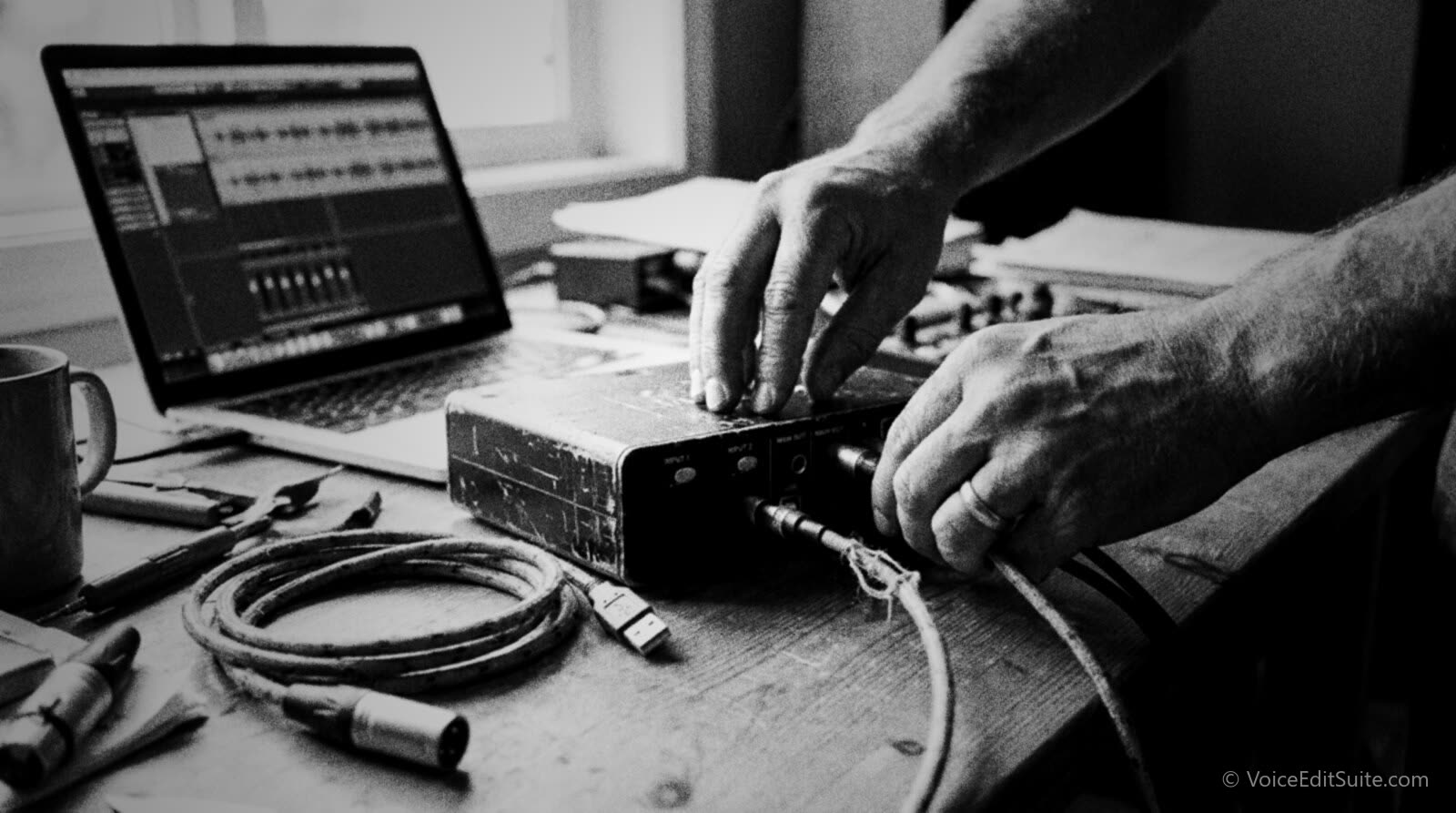
The short answer: latency is the fixed delay between making a sound and hearing it back, set almost entirely by your audio interface's buffer size. Dropouts, clicks and pops are different: the buffer briefly runs empty or overflows because something broke the flow of audio, usually a buffer set too small, a USB connection fighting for bandwidth, a driver or sample-rate mismatch, or Wi-Fi and Bluetooth stealing processing time. Both share the same first move: find out whether the fault is a setting you can fix in thirty seconds, or a cable, port or interface that has actually failed.
A voice actor on a Source-Connect or Zoom session with a director overseas notices latency the instant it crosses a few hundred milliseconds, because "try that again, a little warmer" arrives late enough to talk over the next take. A podcaster recording a remote co-host hears the same symptom as dead air before a laugh lands. Dropouts are worse: a click or a torn syllable is not something a director's ear can route around, and it often means re-recording a line that sounded perfect the first time.
This guide separates the two problems, works through the math behind buffer size and round-trip latency, lists the actual causes of dropouts in order, and gives a checklist for the moment it matters most: live, mid-session, with a director waiting. It assumes a reasonable audio interface and levels gain-staged correctly already; this is about the transport layer under the signal.
What Latency Actually Is, and Where the Math Comes From
Every audio interface works in short, fixed-size chunks called a buffer. Audio from the microphone fills one buffer's worth of samples before the computer can process it, and audio going out to your headphones fills another buffer before the interface can play it. Buffer size is set in samples, commonly 32 to 1024, and the sample rate, typically 44,100 or 48,000 Hz for voice work, sets how many samples the interface captures each second. Divide buffer size by sample rate and you get the fill time. Focusrite's support documentation puts it plainly: a smaller buffer means lower latency, since less time is spent collecting samples, while a larger buffer trades that for more headroom and fewer clicks and pops.
That fill time is only half the real delay. Audio fills an input buffer on the way in, gets processed, then fills a separate output buffer on the way out, so the round-trip latency you hear is roughly double the one-way time, plus a small fixed delay from the converters and USB. Manufacturer figures confirm the doubling: one documented interface reports 4.1 ms round trip at a 16-sample buffer and 44.1 kHz, close to double the 0.36 ms one-way time plus a couple of milliseconds of overhead that never goes away.
A Worked Example: 256 Samples at 48 kHz
Take a common setting: a 256-sample buffer at 48 kHz. One buffer of audio takes 256 divided by 48,000, or 5.33 ms, one-way. The same delay happens again on the way out, so the round trip before overhead is roughly 10.67 ms, landing a couple of milliseconds higher once real conversion delay is added. That matches published figures elsewhere: 256 samples at 44.1 kHz works out to about 11.6 ms round trip by the same doubling, and 1024 samples at 48 kHz works out to about 42.67 ms, long enough to hear your own voice as a delayed echo.
- 32 samples: 0.67 ms one-way, about 1.3 ms round trip. Lowest latency, most likely to click.
- 128 samples: 2.67 ms one-way, about 5.3 ms round trip. Common for solo recording on a decent laptop.
- 256 samples: 5.33 ms one-way, about 10.7 ms round trip. A safe default for home studios and remote direction.
- 512 samples: 10.67 ms one-way, about 21.3 ms round trip. Delayed for live self-monitoring, fine for straight recording.
- 1024 samples: 21.33 ms one-way, about 42.7 ms round trip. Rock solid, but disrupts speech rhythm if monitored live.
That is the entire tradeoff: every step down buys less delay and costs stability, and every step up buys stability and costs delay. Recording alone with no live self-monitoring, buffer size barely matters and can sit at 256 or 512 samples. It matters on a live call, because a director hearing you over Zoom or Source-Connect adds the call software's own latency on top, and an overloaded buffer then turns into an audible click rather than just a monitoring annoyance.
What Actually Causes Dropouts, Clicks and Pops
Dropouts are not one failure with one fix. They are the audible result of the buffer briefly running dry or overflowing, and that happens for several genuinely different reasons. Work through them in this order, cheapest and most likely first.
A Buffer Set Too Small for the Computer
This is the single most common cause and the first thing to check. PreSonus's own support guidance is direct: pops, clicks and dropouts usually mean the buffer is set too low, and the fix is to raise it only as far as needed, since a bigger buffer than necessary just adds latency. Raise it one notch at a time, testing with real recording after each change, and stop at the first size that stays clean. A buffer fine yesterday can glitch today if you opened more tabs or a video call alongside your DAW, all competing for the same processing time.
USB Bus Conflicts and Hubs
A USB audio interface reserves a guaranteed slice of bandwidth through an isochronous transfer, a connection type the host controller promises fixed bandwidth on a strict schedule, as the Android Open Source Project's USB audio documentation explains. That guarantee covers only the wire, not whether your processor delivers data on time, so a port shared with a drive or webcam can still starve the stream. Plug the interface directly into a built-in port rather than a hub, and if unavoidable, use a powered one; a cheap hub is a frequently reported cause of exactly this. USB interfaces are especially sensitive, since the interface depends on that same bus.
Driver Mismatches: ASIO, Core Audio and WDM/WASAPI
Windows, macOS and Linux each talk to audio hardware through a different layer, and which one is in use changes both latency and dropout risk. ASIO (Audio Stream Input/Output) is a driver protocol Steinberg created for low latency, supported by nearly every serious interface maker on Windows; it bypasses most of the general audio stack. WDM, the older Windows Driver Model, is the general path, and WASAPI is Microsoft's newer API on top of it. macOS has no ASIO layer: Core Audio is built into the OS and talks directly to every device, which is why Steinberg's own documentation confirms macOS has no ASIO driver, since Core Audio already makes one unnecessary.
The fix differs by OS. On Windows, install the maker's own ASIO driver and confirm your DAW is set to it. On macOS, most interfaces are class-compliant, meaning the OS already includes a working driver, though some makers offer an optional one for a lower round trip. A stale driver after an OS update is a common cause of sudden dropouts, worth checking first.
Sample Rate Mismatches
A sample rate mismatch between your interface, your DAW's project setting and your OS sound panel is a documented source of clicks, pops and audio playing at the wrong speed. Mackie's own troubleshooting guidance for this symptom names a mismatch between the DAW and OS, or another device locked to a different rate such as an HDMI output, as a usual culprit alongside a buffer set too small. Pick one rate, either 44.1 or 48 kHz, and set it identically across the interface, the DAW and the OS, then recheck it whenever new hardware connects.
Background Processes and Wi-Fi Power Saving
A buffer clean five minutes ago can glitch the moment a backup kicks in or your laptop's Wi-Fi adapter drops into a power-saving state between packets. Windows' USB selective suspend, which powers down an idle USB port, is flagged in Steinberg's own documentation as a cause of small dropouts and delayed recovery on USB audio devices. Fix it in Device Manager: open the USB Root Hub's power management and uncheck the option letting the computer turn it off to save power. The same goes for Wi-Fi power management: a radio pausing to save power is audible exactly when it steals the cycle the buffer needed.
Bluetooth Interference
Bluetooth headsets, mice and 2.4 GHz keyboards share the band a lot of Wi-Fi uses, and that band has a second enemy: USB 3.0 ports and cables radiate broadband noise across roughly 2.4 to 2.5 GHz, which vendors such as Plugable document as a real cause of skipping, lagging Bluetooth audio. Keep wireless peripherals off while recording through a wired interface, and if a wireless receiver must stay plugged in, move it to a USB 2.0 port, away from the USB 3.0 ports the laptop uses for its interface.
Underpowered Laptops and Thermal Throttling
A laptop throttling its own CPU speed to manage heat or battery life is a documented, under-discussed cause of glitches. Sound On Sound's technical coverage describes throttling as increasingly complex and, on many laptops, impossible to fully disable, noting the clock speed changing mid-session, not just running low, produces the short drop-outs some models show. A laptop on battery, in a warm room, with a demanding project open, is the trigger: plug in, use a ventilated surface, set the power plan to performance, and close anything unrelated before recording.
The Live-Session Troubleshooting Checklist
Run through this order the moment a director or remote guest is already on the call and a dropout, click or latency spike has just happened, without restarting the session unless the last step forces it. It works equally for Source-Connect, Zoom or any other remote-recording setup.
- Say so immediately, so a shared understanding saves a confusing re-listen.
- Reseat the USB cable at both ends; a half-seated connector mimics a driver fault.
- Close anything opened since the session started, a tab or sync tool is a frequent cause.
- Raise the buffer size one step, then test with a few seconds of speech.
- Confirm the sample rate still matches across the interface, DAW and call software.
- Turn off Wi-Fi and Bluetooth if on wired ethernet or USB.
- Switch USB ports, not shared with a webcam or drive, and remove any hub.
- If the glitch returns at a buffer size stable minutes ago, swap the cable.
- As a last resort, record locally on a phone call for direction, send the file after.
The thirty-second triage before any session
Before a director joins, record ten seconds of yourself at normal energy with the exact setup you are about to use. Clean, and you have a baseline to return to. Already clicking before anyone has joined, and you just saved yourself from troubleshooting live in front of a client.
Software Setting or Failing Hardware? How to Tell
Most dropouts are a software setting, and most people reach for a new cable long before ruling that out. The honest test is repeatability: a setting problem behaves consistently and stays gone once fixed. A hardware fault is intermittent in a way that tracks no setting you can name, or follows the interface itself when tested on a second machine.
- Likely a setting: the glitch appears at one buffer size and clears one step up, or started right after an update.
- Likely a cable: flexing it near either connector triggers the glitch, and a different cable clears it.
- Likely a failing port or hub: the same cable and interface are clean on a different port or computer.
- Likely the interface itself: the fault follows it everywhere, and it also runs hot or crackles on the gain knob.
A failing interface is rarer than people assume, and most of these resolve with a driver update or a cable swap long before a unit is dying. But a failing USB controller chip, or a connector flexed thousands of times, is a real failure mode. If you keep backup gear on hand, swapping to it for five minutes is the fastest confirmation of whether the interface is really the problem.
↗ Try the tool
Studio Rescue
Free to try: if the same recurring click, dropout or latency spike keeps coming back no matter what you change, Studio Rescue runs through your actual setup, buffer size, driver, sample rate and USB connection, and flags which one is the mismatch, instead of you working down this checklist blind every single session.
Open Studio Rescue →Treat that diagnosis as the deciding vote before spending any money. A clean verdict, buffer, driver and sample rate all matched, fault still present, is what justifies a new cable or interface. It also rules out electrical noise: a dropout is a different animal from the steady ground loop hum a laptop charger can cause, and confusing the two wastes time on the wrong fix.
Frequently Asked Questions
What round-trip latency is actually acceptable for recording?
For solo recording with no live self-monitoring, latency barely matters, and a safe 256 to 512 sample buffer is fine. Monitoring yourself live, most people notice an echo past roughly 10 to 15 ms round trip, which is why 128 or 256 samples at 48 kHz, roughly 5.3 to 10.7 ms, is the common sweet spot.
Do I need an ASIO driver on a Mac?
No. ASIO is Windows-only, and Steinberg's own documentation confirms there is no macOS version of its driver, because Apple's built-in Core Audio already provides the same low-latency connection at the OS level. An optional manufacturer driver can add routing or a lower round trip, but it is never a requirement the way ASIO is on Windows.
Can I ever safely use a USB hub with my audio interface?
Sometimes, but it is the first thing to remove when troubleshooting. A quality powered hub is far less likely to cause problems than a bus-powered travel hub, since the interface needs steady bandwidth and current, and a cheap hub is a documented way to starve both. Plugging straight into a port built into the computer removes an entire category of fault for free.
Is a bigger buffer always the safer choice?
Safer against dropouts, but not free. Every step up adds measurable delay, doubled for the round trip and compounded by any call software's own latency. Raise the buffer only as far as the dropouts actually stop, the same guidance PreSonus gives, rather than jumping to the largest setting out of caution.
Does it matter whether I record at 44.1 kHz or 48 kHz?
Either is fine for voice-over and podcast work; the important rule is consistency across the interface, the DAW and the OS. A higher sample rate slightly reduces latency for the same buffer size, but the difference is too small to be the deciding factor. ACX specifies 44.1 kHz; video and podcast work often defaults to 48 kHz, so let your delivery format decide, not latency.
Why do I only get dropouts on a Zoom or Source-Connect call, never recording alone?
The call software competes for the same processing time, USB bandwidth and driver access your DAW needs, and video calls add real-time encoding on top. Close unnecessary apps, confirm the call software isn't fighting your recorder over sample rate, and consider recording locally while using the call purely for direction.
Sources and Further Reading
- Focusrite Support: What is a buffer size, and why does it matter?: the buffer and sample rate tradeoff.
- PreSonus Knowledge Base: Problem with pops, clicks, dropouts, or any audio distortion: buffer-too-low diagnosis.
- Mackie Help Center: Troubleshooting Glitches, Pops or Robotic/Distorted Audio: sample rate mismatches.
- Steinberg Help Center: Steinberg built-in ASIO Driver: the ASIO standard and why macOS has none.
- Sweetwater: What's the Difference Between ASIO, WDM and MME Drivers?: how each reaches hardware.
- Steinberg: Windows USB Selective Suspend, Issues with USB Devices: suspend as a dropout cause.
- Plugable Knowledge Base: The Range of the Plugable Bluetooth Adapter Seems Poor and/or Audio Is Skipping or Lagging: USB 3.0 interference.
- Violet Recording: The Best USB Hubs for Audio Interfaces: powered vs bus-powered hubs.
- Android Open Source Project: USB Digital Audio: isochronous USB bandwidth.
- Sound On Sound: CPU Throttling: throttling as a dropout cause.
- Berklee Online: How to Configure Zoom Audio Settings for Music Performance: wired, high-fidelity settings.
- Carleton College: What happens if I bypass Zoom's audio signal processing?: echo cancellation tradeoffs.