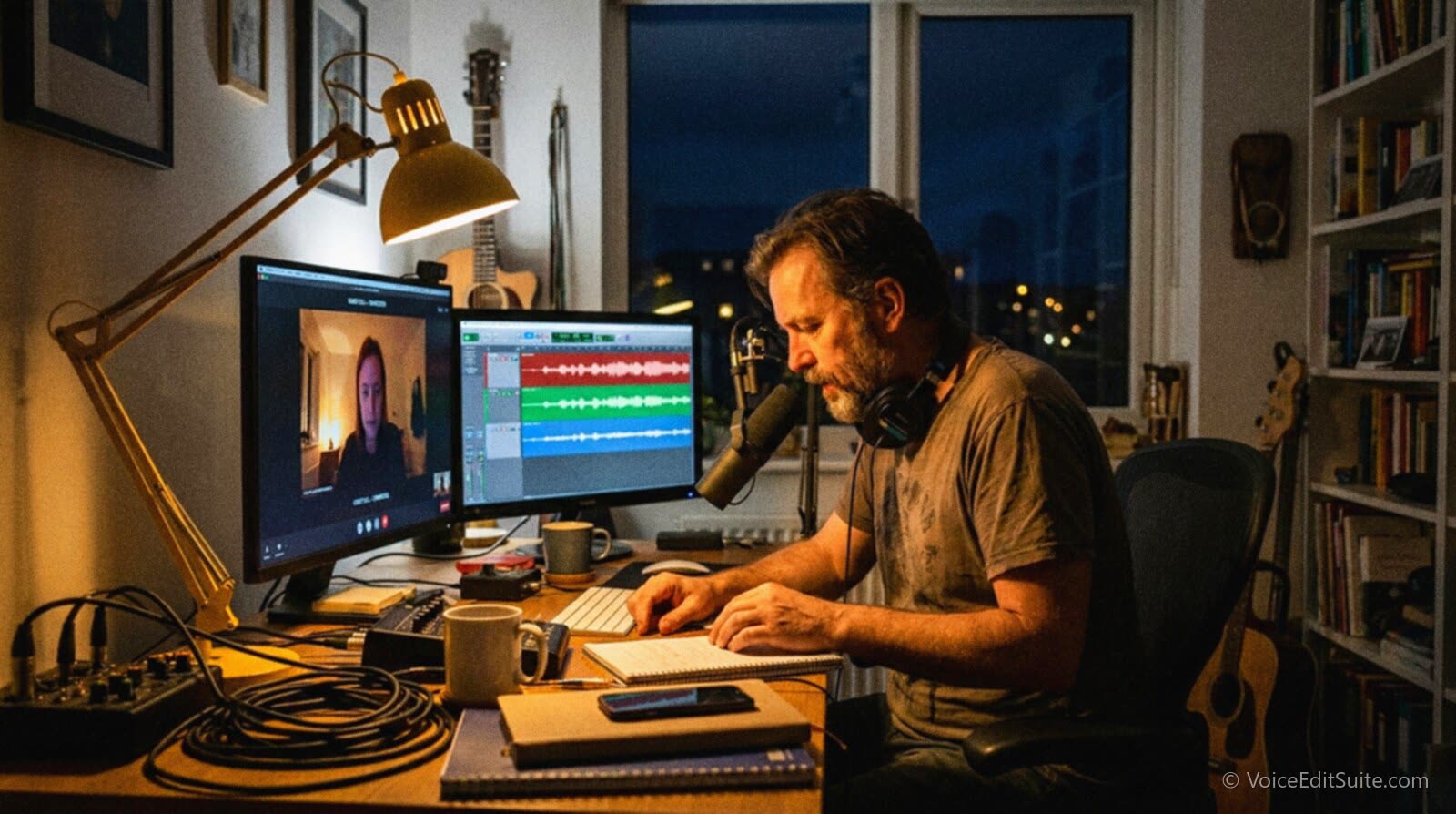
Record every person's voice on their own device, not off the call. That single habit, often called a double-ender, decides more about how a remote interview sounds than any microphone purchase. A video call compresses audio before it leaves the building, and once that compression happens there is no editing step that puts the detail back. A local recording never travels anywhere before you get it, and a dropped connection has nothing to do with it either, because nothing being saved ever went near the internet.
This Guide is the practical version of that idea: the tech check to run before anyone presses record, how to get two or three simultaneous recordings running so a single failure never costs you the episode, what to actually tell a guest who has never recorded audio before, what to do when their connection falls over mid-sentence, and how the separate files come back together in the edit.
Why a Local Recording Beats the Call Itself
Every video call platform, from a dedicated conferencing app to a plain phone call, has to compress audio before it leaves the building. Bandwidth is limited and shared with video, so the software throws away detail it assumes the ear won't miss, squeezes what remains into a narrow stream, and reconstructs something close to the original at the other end. Podcast production guides that have measured Zoom's standard call audio put it somewhere in the region of 40 to 55 kilobits per second depending on the connection, well below what a decent USB microphone or audio interface records natively, and well below what you'll hear if that call recording ends up being your episode.
What a call platform is actually optimising for
A call platform is built to deliver a clear conversation in the moment, not a master recording for later editing. Zoom's Original Sound and High Fidelity options are a useful example of the ceiling: turning them on can raise the codec from that default 40-60 kbps range up toward 96 kbps mono or 192 kbps stereo, which is a real improvement. But both sides of the call have to enable it, everything still routes through the same two devices and the same shared internet connection, and the moment either side's connection dips, the platform drops frames, smooths over the gap, or disconnects entirely, and all of that is now baked permanently into your only copy of the conversation.
What recording locally gives you instead
A local recording skips all of that. Your guest's microphone feeds their own device's recorder at whatever quality that device can manage, and the file never has to survive a trip across the internet before you hear it. Record that way and three things follow directly: the audio is simply better before you do anything to it, a dip or a total drop in the connection has no effect on the recording itself, and you end up with a separate track per person, which is what actually lets you fix problems afterward. Why your guest sounds quieter than you only has a real fix when host and guest are on separate tracks you can balance independently; on a single mixed call recording there is nothing left to separate.
This is a different problem from a scripted two-person voice over session, where both performers are trained, know their own gear and are reading matched copy against a script; recording a remote duet is mostly about timing and direction between two professionals. An interview guest is usually on a laptop they own for other reasons entirely, has never recorded audio before in their life, and is giving you one real, unscripted take of a conversation. The workflow below assumes less skill and more things that can go wrong, which is exactly why the tech check exists.
The Tech Check: What to Confirm Before You Press Record
Run this a day or two before the interview, as a short separate call, never for the first time five minutes before recording starts. A tech check that happens the same day gives you no time to actually fix anything it turns up, which defeats most of the point of running one.
The five-minute script
- Ask what they'll use, specifically. A headset, a USB mic, wireless earbuds, or just the laptop's built-in mic. If it's the laptop mic, ask them to sit roughly a hand's width from the screen with the lid open wide; a mic buried near a nearly-closed lid picks up fan noise and keyboard clatter instead of a voice.
- Have them send a 20-second test recording, not a live sample on the call. Ask for a voice memo or any quick recording app on their phone or laptop, so you hear exactly what their local file will sound like, not the call platform's cleaned-up version of it.
- Confirm headphones, not speakers. If their own voice and yours both play back out of laptop speakers, your voice bleeds into their microphone along with it, and that bleed is now permanently inside their track. Any wired headphones, even basic ones, fix this completely.
- Walk through starting the recording on their device, step by step, while you watch them do it on screen share. This is the single most common point of failure: a guest who is perfectly confident on the call but has never pressed record on anything before.
- Agree on a cue for starting and stopping together. A spoken countdown works better than hoping everyone presses record on the same second, and a few extra seconds of silence at the start of each file costs nothing and makes syncing far easier later.
- Send one plain written reminder afterward, repeating only the two or three things that matter: which app to open, which button to press, and to leave it running until you both say stop.
None of this needs to feel like an audition. Most guests appreciate the five extra minutes, because it's the difference between sounding like themselves on the finished episode and sounding like a phone call.
Backup Audio: Recording the Same Thing More Than Once
The 3-2-1 approach to data backup, three copies of anything that matters, on two different kinds of storage, with one of them somewhere else entirely, comes from photography rather than podcasting (it's generally credited to photographer Peter Krogh, who set it out in his book on managing a digital photo archive), but the logic transfers directly to a recorded conversation you cannot repeat. A guest's local track is your best copy. It is also the one most likely to fail in a way nobody notices until afterward: a laptop that goes to sleep mid-call, a recording app that silently stops, a drive that fills up. Redundancy means a second and third recording exist that don't depend on the same device, the same app or the same moment going right.
The diagram above is the version of 3-2-1 that fits an interview: the guest's own local file as the primary copy, the call platform's built-in recording running at the same time as a second copy from a completely different device and method, and, for anything that genuinely can't be re-recorded, a simple phone voice memo of the room as a third. None of the backup layers need to sound as good as the primary. Their only job is to exist if the primary doesn't.
Three layers worth having
- Layer one: the guest's local recording. Whatever device and app they're using to record themselves, started on your agreed cue, left running until you both say stop.
- Layer two: the call platform's own recording. This is the compressed, mixed, lower-quality version this whole Guide argues against using as your source, but as a safety net it's free, it starts with one click on your side alone, and it comes from a different device and a different recording path than the guest's local file, which is exactly what makes it useful as backup rather than a second copy of the same risk.
- Layer three, optional, for anything irreplaceable: a phone voice memo. For a nervous first-time guest, or an interview you genuinely can't redo, a phone propped nearby running a plain voice memo app for the duration is a crude but real third copy that depends on none of the same equipment as the other two.
Three recordings sounds like overkill until the one time a guest's laptop recording turns out to be eleven seconds of silence because a notification stole focus from the recording app. That happens more often than dropped internet connections do, and it's the one failure mode a backup actually fixes; a dropped connection, by contrast, usually only breaks the call recording, not the local one, which is the whole point of not depending on the call in the first place.
The cheapest layer is a one-click one
If you only add one backup, make it the call platform's own recording. It costs you one click on your side, needs nothing from the guest, and comes from an entirely different device than their local file.
Coaching a Guest Who Has Never Recorded Audio Before
The goal is a handful of specific, low-effort asks, not a lecture on acoustics. Overload a first-time guest with instructions and you'll get a stiffer, more self-conscious interview out of someone who was already a little nervous about the conversation, let alone the recording.
The four things worth asking for
- Headphones, any pair. This is the one request worth repeating if it gets forgotten, because it's the one thing that bleeds permanently into the recording and can't be fixed afterward.
- A closed door and a soft room. A bedroom, a car with the engine off, or a closet full of clothes all beat an open kitchen or a home office with a hard floor and bare walls. A bedroom's echo and noise problems are a guest's problem too, not just a host's.
- Roughly a hand's width from the mic, and staying there. Close enough to sound present, far enough that breath and lip noise don't pop. If they drift closer and farther while talking, that's the one physical habit worth a gentle mid-interview reminder.
- Quiet devices. Phone face down and on silent, notifications off on whatever they're recording with. A single buzz or chime during a good answer is one of the most common reasons a take needs a retake.
What to leave out
Skip anything about EQ, gain staging, pop filters, or buying new equipment, unless they ask. A guest who owns one microphone and no acoustic treatment can't act on advice that assumes either, and most of the problems that advice would solve are smaller than the four above. If their setup is genuinely rough, that's a job for cleanup afterward, not a pre-interview checklist; AI noise removal handles a fan or a hollow-sounding room far more reliably than a guest trying to fix it live on a call they're already a little nervous about.
When the Connection Drops Mid-Interview
Because the recordings are local, a dropped connection is an inconvenience in the conversation, not a hole in the audio. The guest keeps talking into their own microphone and their own recorder the entire time; what breaks is only your ability to hear and respond to them live, which is a conversational problem, not a technical one.
- Keep talking through a short freeze. A glitch under a couple of seconds often isn't worth stopping for. The local recordings carry on regardless, and you can smooth the conversational gap in the edit.
- Have a reconnection plan agreed in advance, not improvised in the moment: close the call window, reopen it, rejoin with the same link. Say it out loud as you do it, since that spoken note is what tells you, later, exactly where the gap happened and what to check against the local file.
- Never restart a local recording to fix a call problem. The guest's file is unaffected by the call dropping. Restarting it anyway is how the one clean recording you actually needed gets split into two files for no reason.
- If the call dies completely, finish the interview anyway. Keep recording locally if you can still reach each other some other way, even a plain phone call for the remaining questions. A single audio track with the conversation intact edits far better than a clean recording that stops before the interview finished. Taking direction over a call that keeps dropping covers the same problem from the performer's side of a session.
Syncing Separate Tracks and Handing Off to the Edit
A double-ender hands you two or three files that all start at slightly different moments and were recorded at whatever level and format each person's device defaulted to. None of that is a problem if you plan for it before you record rather than discovering it after.
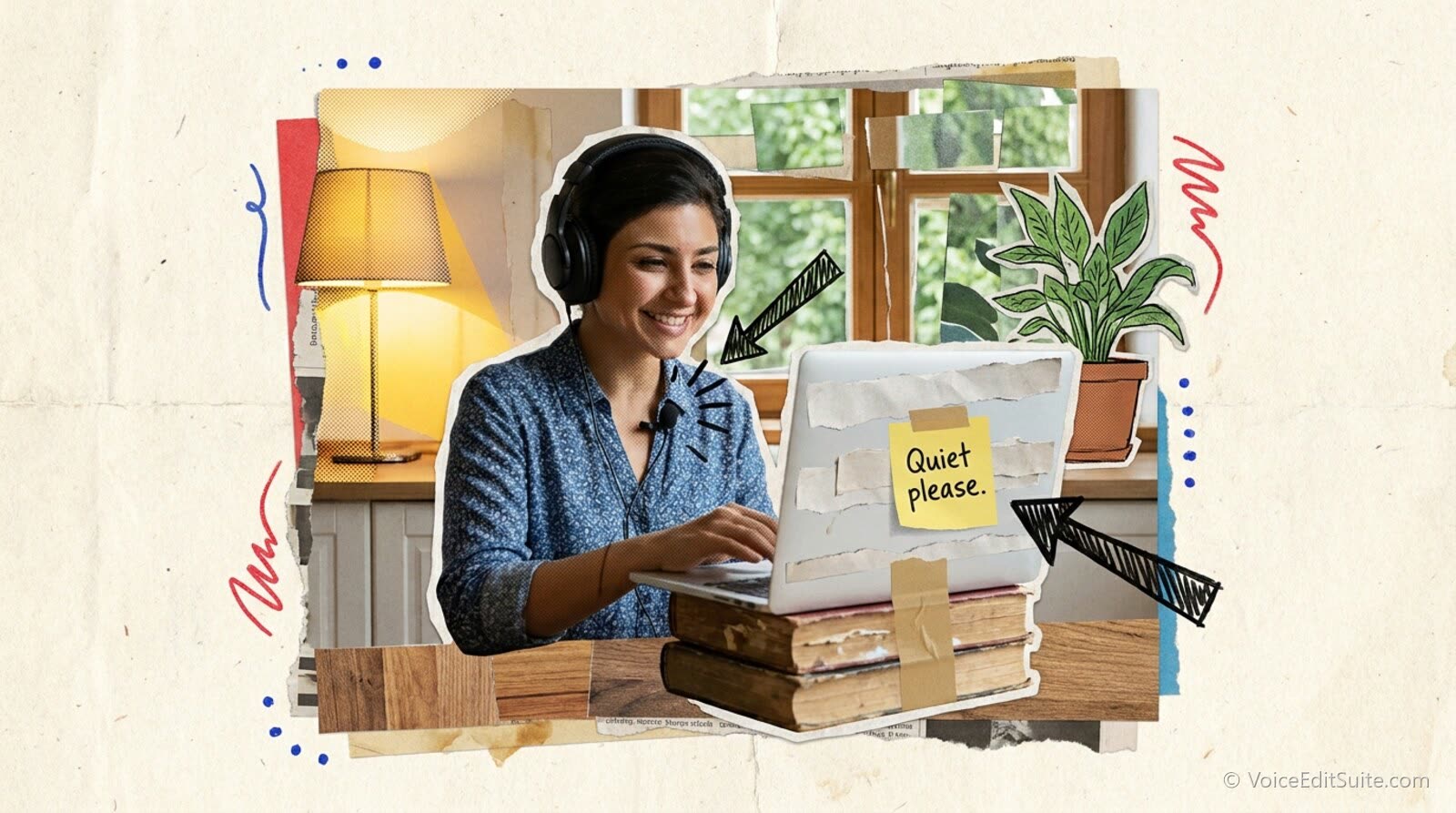
Ask for a clear, shared marker at the very start of the recording: the agreed verbal cue from the tech check, or a sharp hand-clap everyone can hear through their own mic. That single spike shows up on every file's waveform in roughly the same relative position, and lining those spikes up in your editor gets every track synced to within a frame or two, far more reliably than trying to match it by ear later. Confirm file format while you're at it too: ask for the highest-quality export each app offers, uncompressed if it's an option, and a consistent sample rate across every file saves a conversion step before you can even start syncing.
- Collect every file before you do anything else, and keep an unedited copy of each one you never touch again.
- Line up the sync marker on every track in your editor, then trim the dead time before it off the front of each file.
- Check each person's track for the problems above, noise, echo, a mid-interview dropout, before you start cutting anything.
- Edit once, across all tracks together, so a cut on the host's track doesn't leave the guest's answer starting a half-second early.
That last step is where most of the time disappears on a multi-track episode. Cutting each track separately and then trying to re-align them afterward is slower than doing it once, properly synced, from the start.
↗ Try the tool
Auto Clean Up
Auto Clean Up takes every track from a remote interview, host and guest, a call-recording backup included if you want it compared against, and keeps them in sync with its keep-in-sync setting so a cut on one track never drifts against another. It quietens breaths in place without shortening the pause around them, and tightens dead air and false starts across the whole conversation in one pass. It's built for exactly this: several files from several different recorders that need to land back in the same timeline.
Open Auto Clean Up →Once the conversation is synced and cleaned, the last job is bringing host and guest to a matching level and setting loudness once on the finished mix, not on either track alone. The order of operations in the noise-removal and editing Guide applies here exactly as it does to a solo recording, just with one more track in the mix.
Frequently Asked Questions
Can I just record the call instead of asking my guest to record locally?
You can, and for a casual or one-off conversation it may be good enough. But the call audio is compressed before it reaches you, any connection trouble is baked permanently into that recording, and you get one mixed file instead of separate tracks, so you lose the ability to clean, balance or edit each voice independently. For a show you plan to publish regularly, local recording is worth the extra five minutes of setup.
What if my guest won't or can't record locally?
Record the call itself as your source, on the best setting the platform offers, and treat it the way you would any single mixed recording: clean it as one file, balance it as best you can, and plan to ask for local recording next time. It's a worse starting point, not a disqualifying one.
Do I really need three separate recordings running at once?
Two is a reasonable minimum for anything you'd be upset to lose: the guest's local track plus the call platform's own recording, since that second copy costs you one click and comes from an entirely different device. A third, such as a phone voice memo, is worth adding only for an interview that genuinely can't be redone.
How do I sync tracks if we forgot to agree on a start marker?
Look for any shared sound that landed on every track: a cough, a laptop chime, even the first word of the conversation itself, lined up by ear using the waveform shapes. It's slower and less precise than a planned marker, but a real conversation almost always has something in common across every file within the first minute.
Should I record video the same way, locally per person?
The same logic applies, but the practical cost is higher: video files are much larger to send and store, and most non-technical guests have no simple way to hand over a multi-gigabyte local video file. Many podcasters record video through the call platform for reference or clips while keeping audio strictly local per person, which is a reasonable split if video isn't the main product.
My guest and a second person are together in the same room. Can they share a mic?
They can if there's no better option, but it costs you the biggest benefit of local recording: a single shared track with no way to balance the two voices or fix one without touching the other. If it's at all possible, even two phones recording voice memos a few feet apart gives you two tracks instead of one, which is worth far more in the edit than either recording sounding slightly better on its own.
Sources and Further Reading
- Audio requirements for Apple Podcasts, Apple Podcasts for Creators: the loudness and true peak targets referenced in the mixing step above.
- Backup Your Podcast Sessions in 3-2-1, The Podcast Host: applying the 3-2-1 backup principle specifically to recorded podcast sessions.
- How to Record a Call Using Zoom.us for Podcasting, The Podcast Host: measured figures on Zoom's standard call audio bitrate.
- Zoom High Fidelity Audio: Will My Podcast Benefit?, East Coast Studio: the Original Sound and High Fidelity codec settings and their trade-offs.
- In-Depth Interviews, Anywhere, Anytime: Double-Ender Recording for Podcasting, Waveroom: why local per-person recording outperforms a captured call.
- Should You Ask Remote Guests to Record Their Own Audio Locally?, Podcast Engineering School: which guests can manage local recording, and backup practices for when they can't.
- How to get great-sounding audio from your podcast guests, from a distance, Pacific Content: non-technical guest coaching on room, headphones and mic distance.